
Everyone agrees that backups are important. Almost nobody actually has a reliable system in place until after they lose something irreplaceable. A family photo archive, years of financial records, a thesis draft due next week — the things people lose to drive failures, ransomware, accidental deletion, and theft are exactly the things that matter most. Setting up a proper backup system takes less than an hour and costs less per month than a streaming subscription. There’s genuinely no good reason not to do it.
The 3-2-1 Rule: Three Copies, Two Media Types, One Offsite
The 3-2-1 backup strategy is the industry standard for a reason — it protects against every common data loss scenario. You maintain three copies of your important data: the working copy on your computer, a local backup on a different device (external hard drive, NAS), and a remote backup in a different physical location (cloud service or a drive stored elsewhere). The “two media types” part ensures that a vulnerability affecting one format doesn’t wipe out both your backup copies. A drive failure destroys one copy; a house fire destroys the ones physically present; ransomware encrypts everything connected to your network — but it can’t touch an offsite cloud backup that maintains version history.
Local Backups: Fast and Under Your Control
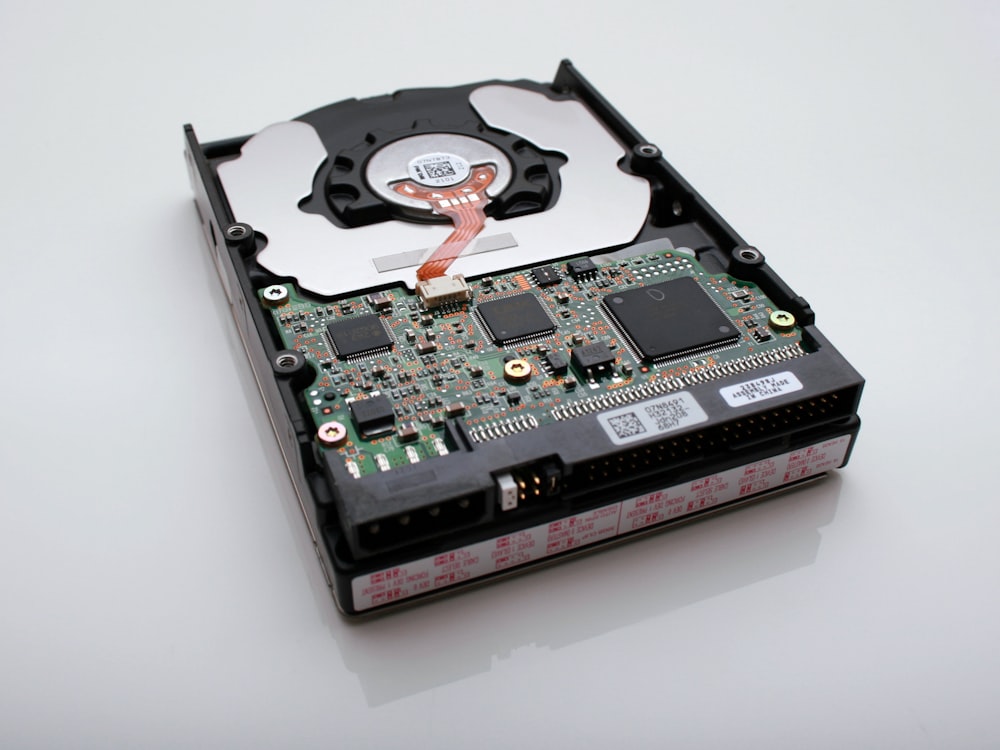
An external hard drive plugged into USB provides the fastest backup and restore speeds, complete privacy (your data stays physically with you), and no ongoing subscription costs. Windows File History backs up your user folders automatically when an external drive is connected. macOS Time Machine does the same with more comprehensive system-level snapshots. The critical practice with local backups is disconnecting the drive when you’re not actively backing up — ransomware encrypts connected backup drives just as readily as your primary drive. A $60 2TB external HDD gives most people more than enough space for local backups with room to maintain multiple file versions.
Cloud Backup Services: Your Offsite Safety Net
Cloud backup runs continuously in the background, uploading new and changed files to encrypted servers in data centers far from your home. If your house floods, your laptop is stolen, or ransomware hits, your cloud backup is untouched and accessible from any device. Backblaze Personal ($9/month or $99/year) offers unlimited backup for a single computer with 30-day version history (extendable to one year for an extra fee). iDrive ($80/year for 5TB) covers multiple devices and includes NAS backup support. Both encrypt your data before it leaves your machine and during transmission. The initial upload can take days or weeks depending on your internet upload speed and data volume, but after that, incremental backups are fast and invisible.
Cloud Sync vs Cloud Backup: They’re Not the Same
Dropbox, Google Drive, OneDrive, and iCloud are sync services, not true backup solutions. They mirror your files across devices — which means if you delete a file or ransomware encrypts it, that deletion or encryption syncs to all your devices and the cloud copy. Most sync services offer a 30-day file recovery window, which helps with accidental deletions, but they don’t replace a proper backup service that maintains independent version history and covers your entire system rather than just specific folders. Use sync for convenience and collaboration; use backup for protection.
What to Back Up
At minimum, back up everything in your user profile folders — Documents, Pictures, Videos, Desktop, Downloads, and any project folders you’ve created outside the default locations. If you use specialized software (accounting programs, creative applications, email clients with local storage), locate those application data folders and include them. Your operating system and installed programs can be reinstalled; your personal files, creative work, and financial records cannot be recreated. A system image backup (a snapshot of your entire drive including OS, programs, and settings) speeds up recovery after a total drive failure but isn’t a substitute for file-level backups of your critical data. If you’re dealing with the aftermath of data loss right now, our file recovery guide covers your immediate options.
Test Your Backups
A backup you’ve never tested is a hope, not a plan. Once a quarter, pick a handful of files from your backup and actually restore them. Verify that they open correctly and contain current data. Check that your backup service’s dashboard shows recent activity and no errors. This five-minute check catches problems — full drives, expired subscriptions, silently failed backup jobs — before they matter.
The best backup system is one that runs without you thinking about it, protects against every realistic threat, and has been tested at least once. Set it up today — before the event that makes you wish you had.