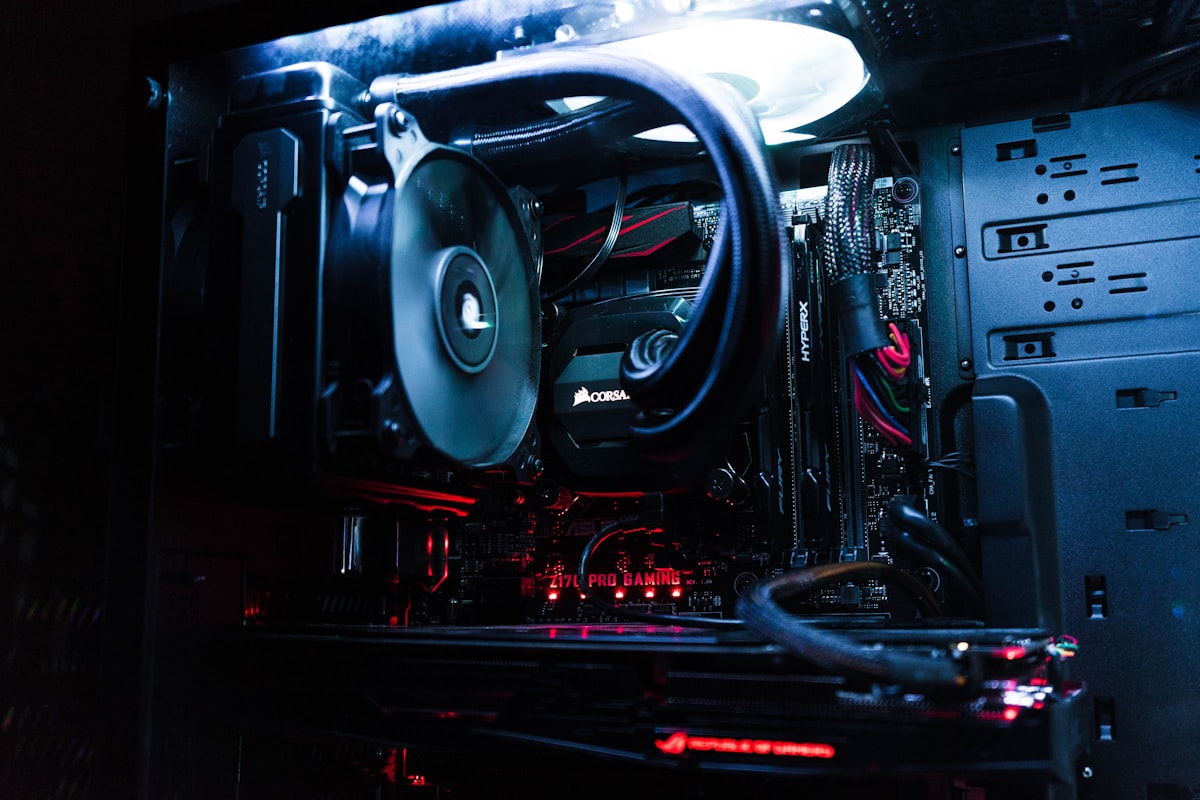
Every computer generates heat. The CPU, GPU, power supply, and even RAM modules produce thermal energy during normal operation. The cooling system — fans, heatsinks, thermal paste, and case airflow — is designed to dissipate that heat fast enough to keep temperatures in a safe operating range. When something disrupts that balance, temperatures climb, performance throttles, and in extreme cases, hardware sustains permanent damage. Understanding why overheating happens tells you exactly how to prevent it.
Dust Buildup: The Most Common Culprit
Dust accumulates on fan blades, heatsink fins, and intake vents over months and years of use, forming an insulating blanket that blocks airflow. A desktop that hasn’t been cleaned internally in two or three years can have heatsinks so clogged that airflow drops by 50% or more. Laptops are even more susceptible because their compact cooling systems have tighter tolerances. A can of compressed air (blow dust away from the intake, not deeper into the machine) every three to six months keeps temperatures noticeably lower. For desktops, open the side panel and give the CPU heatsink, GPU fans, and case fans a thorough cleaning.
Dried or Poorly Applied Thermal Paste
Thermal paste — the compound between the CPU die and the heatsink — transfers heat from the chip to the cooler. Over three to five years, thermal paste dries out, cracks, and loses conductivity. Replacing it (a $10 tube of paste and a 20-minute process for desktops) can drop CPU temperatures by 10 to 20 degrees Celsius. On laptops, the process is more involved since you need to remove the bottom panel and potentially the entire cooling assembly. If your machine is older and running hotter than it used to, dried thermal paste is a likely factor.
Inadequate Airflow and Poor Placement
Where your computer sits matters. A desktop tower pushed flush against a wall with its exhaust vent blocked recirculates hot air instead of expelling it. A laptop sitting on a bed, couch cushion, or carpet blocks the bottom intake vents that the cooling system depends on. Place desktops where exhaust can flow freely and use laptops on hard, flat surfaces. A simple laptop cooling pad ($15-$30) with additional fans underneath makes a measurable difference during heavy workloads. If you’re building a gaming PC, choose a case with mesh front panels and plan your fan layout for positive pressure airflow — more intake than exhaust.
Background Processes Pushing Your Hardware
Sometimes the problem isn’t the cooling — it’s what’s generating the heat. A crypto miner hidden in a browser extension, a stuck Windows Update process, or an application with a memory leak can peg your CPU at 100% for hours without you realizing it. Open Task Manager and sort by CPU usage. Anything consistently above 20% when idle deserves investigation. Our Windows 11 performance guide walks through identifying and eliminating these resource hogs.
Failed or Failing Fans
Fans wear out. Bearings degrade, blades accumulate imbalanced dust deposits, and motors eventually die. A fan that’s making grinding noises, spinning intermittently, or not spinning at all needs replacement. You can monitor fan speeds through utilities like HWMonitor or SpeedFan (Windows) — if a fan shows 0 RPM while the system is under load, it’s failed. Desktop fan replacements are inexpensive ($10-$20) and straightforward. Laptop fan replacements typically run $30-$60 for the part, plus labor if you’re not comfortable disassembling the machine.
Monitoring Your Temperatures
You can’t fix what you can’t measure. HWMonitor (free, Windows) displays real-time temperatures for your CPU, GPU, and drives. Core Temp focuses specifically on CPU temperatures and sits quietly in your system tray. For Macs, iStat Menus provides the same data with a clean interface. Normal idle temperatures for a desktop CPU are 30-45°C; under heavy load, 70-85°C is typical with a good cooler. Anything consistently above 90°C under load indicates a cooling problem that needs attention. GPUs run slightly warmer — up to 85°C under load is normal for most cards; sustained temperatures above 95°C are concerning.
Overheating is almost always fixable and usually cheap to address. A $6 can of compressed air and 10 minutes of cleaning prevent the kind of thermal damage that turns a $1,000 machine into a paperweight.