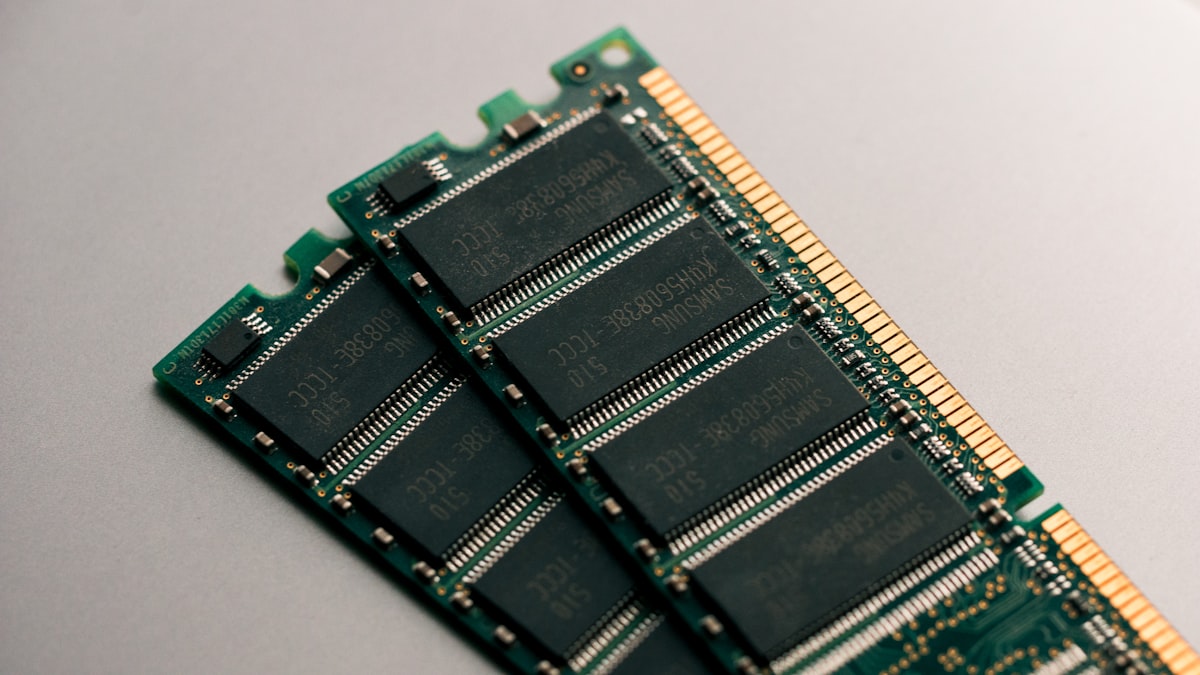
RAM (Random Access Memory) is your computer’s short-term memory — the workspace where the operating system, applications, browser tabs, and background processes all live while they’re active. When you run out of RAM, your computer starts using your storage drive as overflow space (called “paging” or “swap”), and since even a fast SSD is dramatically slower than RAM, everything grinds down. Having enough RAM means your system never has to reach for that overflow. Having more than enough means you’re paying for capacity that sits empty.
4GB: Not Enough for Anything in 2026
Windows 11 alone uses 3 to 4 GB of RAM at idle. Open a web browser with a few tabs, a word processor, and Spotify, and you’re already paging. If your machine has 4GB, an upgrade is the single most impactful change you can make. It’s inexpensive — DDR4 RAM runs $15-$25 for an 8GB stick — and the difference in responsiveness is immediate and obvious. Our Windows 11 speed guide lists RAM upgrades as one of the top recommendations for sluggish machines.
8GB: The Bare Minimum That Works
For basic computing — web browsing with 10-15 tabs, office productivity, email, streaming, light photo editing — 8GB handles the workload without constant paging. It’s tight, though. You’ll feel the ceiling if you’re a heavy tab user, run multiple applications simultaneously, or keep apps running in the background. Most budget laptops for students ship with 8GB, and it’s adequate for coursework as long as you don’t push into heavier creative or technical workflows.
16GB: The Sweet Spot for Most People
For the majority of users in 2026, 16GB is the answer. It comfortably handles heavy multitasking (30+ browser tabs alongside Office, Slack, Zoom, Spotify, and background utilities), casual gaming, photo editing in Lightroom, and light video editing. You’ll rarely if ever see Windows paging to disk under normal use. The price difference between 8GB and 16GB has narrowed to the point where there’s little reason not to start here if your budget allows. If you’re building a gaming PC, 16GB of DDR5 is the recommended baseline.
32GB and Beyond: When You Actually Need It
Professional video editing (4K and higher), 3D rendering, large dataset work, running virtual machines, professional music production with dozens of plugin instances, and software development with heavy IDE and container workloads all benefit from 32GB or more. If your workflow doesn’t include these activities, 32GB won’t make your computer feel any faster than 16GB — once you have enough RAM, extra capacity provides zero performance benefit. It’s like adding a third lane to a road that never has traffic.
How to Check Your Current Usage
Open Task Manager (Ctrl+Shift+Esc on Windows) and click the Performance tab, then Memory. Use your computer normally for 30 minutes — open everything you typically have running — and check the “In Use” figure. If you’re consistently above 80% of your installed RAM during normal use, an upgrade will improve your experience. If you’re sitting at 40-60%, you have plenty of headroom. The Committed figure shows the total memory your applications have reserved, which is typically higher than actual usage and a better indicator of peak demand.
Speed and Configuration Tips
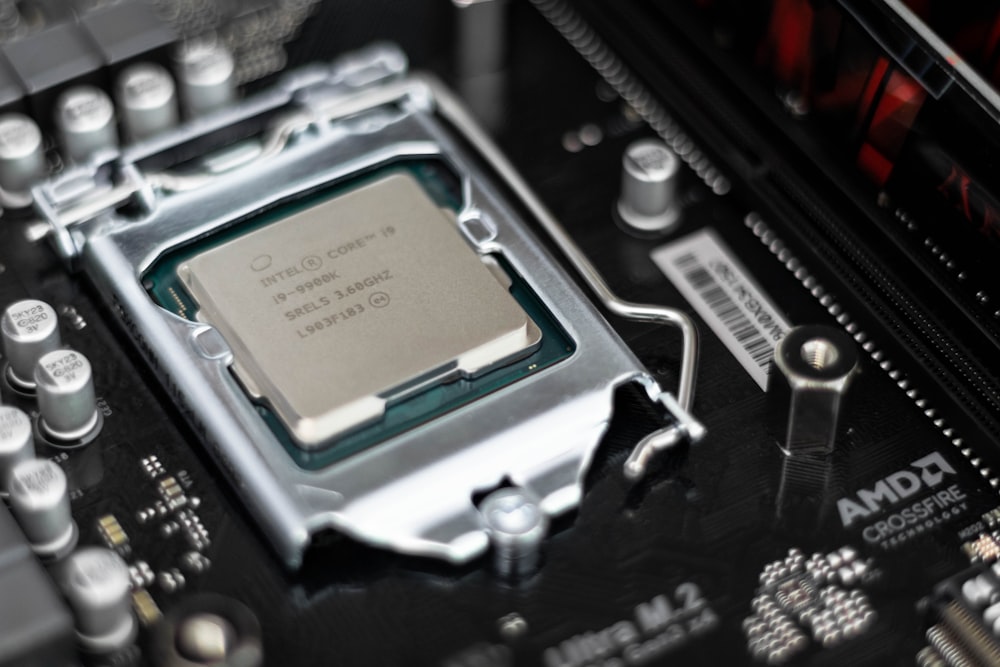
RAM speed matters most on AMD Ryzen processors, which benefit from faster memory due to the Infinity Fabric’s connection to memory frequency. DDR5-5600 to DDR5-6000 hits the sweet spot for Ryzen 7000 series. Intel systems see smaller gains from faster RAM. Regardless of platform, always install RAM in pairs in the correct slots (check your motherboard manual — it’s usually slots 2 and 4) to enable dual-channel mode, which effectively doubles memory bandwidth compared to a single stick.
The right amount of RAM is the amount that keeps your system from paging during your heaviest typical workload — no more, no less. Check your actual usage, match it to the guidelines above, and spend the difference on something that will actually make your computing life better, like a good external monitor.