Why Your Home Network Setup Matters More Than You Think
The average household now runs somewhere between 15 and 25 connected devices — laptops, phones, tablets, smart TVs, security cameras, game consoles, smart speakers, and more. Most people plug in the router their internet provider shipped them, connect a few things over Wi-Fi, and hope for the best. That works until it doesn’t — until someone’s video call drops while another family member starts streaming, or the smart thermostat in the hallway can barely hold a connection because it’s three walls away from the router.
Setting up a proper home network takes about an hour of intentional planning and configuration. The payoff is faster speeds, fewer dead zones, better security, and a setup that scales as you add more devices without falling apart.
Start with the Right Router
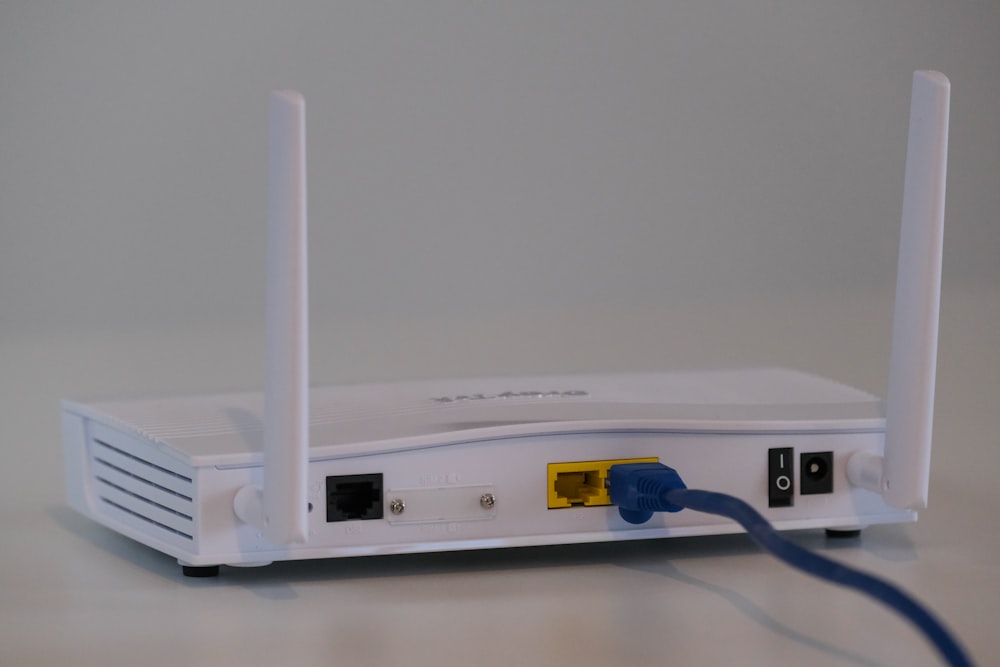
Your router is the heart of your home network, and the one your ISP provided is almost certainly underpowered for a modern multi-device household. Look for a Wi-Fi 6 (802.11ax) or Wi-Fi 6E router at minimum. These standards handle multiple simultaneous connections far better than older Wi-Fi 5 routers through technologies like OFDMA and MU-MIMO, which allow the router to communicate with several devices at once rather than taking turns. For homes over 2,000 square feet, a mesh system — three or more coordinated access points — eliminates dead zones far more effectively than a single powerful router or range extenders.
Position Your Router for Maximum Coverage
Router placement is one of the most impactful and most overlooked factors in network performance. Wi-Fi signals radiate outward in all directions, so the ideal position is centrally located in your home, elevated (on a shelf or mounted high on a wall), and away from dense obstacles like concrete walls, metal appliances, and fish tanks (water absorbs Wi-Fi signals surprisingly well). Never place your router in a closet, on the floor, or tucked behind a TV — each of those kills signal strength. If your internet connection enters through one corner of the house, run an Ethernet cable to a central location and place the router there. The cable is cheap; the coverage improvement is significant.
Separate Your Network into Bands and SSIDs
Modern routers broadcast on both 2.4 GHz and 5 GHz bands (and 6 GHz on Wi-Fi 6E models). The 2.4 GHz band travels farther through walls but offers slower speeds and more interference from neighboring networks and household electronics. The 5 GHz band is faster but has shorter range. For best results, assign bandwidth-heavy devices like streaming boxes, gaming consoles, and work laptops to the 5 GHz band, and put IoT devices like smart plugs, thermostats, and security sensors on 2.4 GHz. Some routers do this automatically through band steering; others let you create separate network names for each band. If your router has problems managing multiple devices, our Wi-Fi troubleshooting guide covers the most common connection issues.
Use Ethernet Where It Counts
Wi-Fi is convenient, but nothing beats a wired connection for speed and reliability. Any device that stays in one place — desktop computers, game consoles, smart TVs, network-attached storage — should be hardwired via Ethernet if possible. A Cat 6 cable supports speeds up to 10 Gbps over short runs and eliminates the latency and interference issues that come with wireless connections. If running cables through walls isn’t practical, powerline adapters or MoCA adapters (which use your home’s existing coaxial cable) can deliver wired-like performance to distant rooms without new wiring.
Secure Your Network Properly
An unsecured or poorly secured home network is an open invitation. Change your router’s default admin password — most ship with “admin/admin” or similar — and set a strong, unique Wi-Fi password using WPA3 encryption (or WPA2 if your devices don’t support WPA3 yet). Disable WPS (Wi-Fi Protected Setup), which has well-documented security vulnerabilities. Create a separate guest network for visitors so they can access the internet without touching your internal devices. And consider creating a dedicated IoT network for smart home devices, which are often the weakest security link in a home setup. Our ransomware protection guide covers additional network-level security measures worth implementing.
Monitor and Manage Connected Devices
Most modern routers include a web interface or companion app that shows every connected device, its IP address, bandwidth usage, and connection type. Review this list periodically — you might find devices you forgot about, or worse, devices you don’t recognize. Set up Quality of Service (QoS) rules to prioritize traffic for video calls and gaming over background downloads and IoT chatter. Some routers let you schedule internet access by device, which is useful for managing screen time or ensuring bandwidth-heavy backups run during off-peak hours.
A thoughtful home network setup isn’t just for tech enthusiasts. It’s the difference between a household where everyone fights for bandwidth and one where everything just works — quietly, reliably, and securely.